|

PLEASE NOTE:
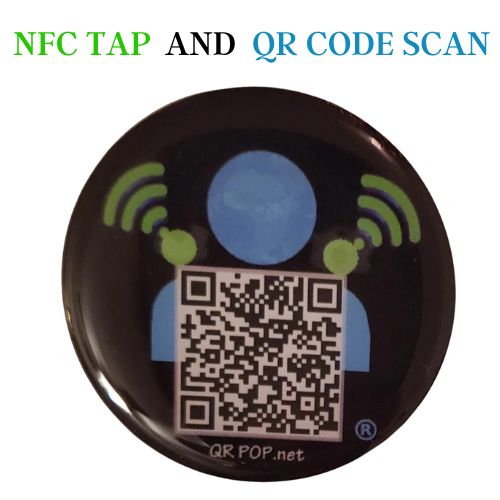
*THAT THE RIGHT QR CODE WILL DETERMINE WHAT HAPPENS WHEN YOU TAP YOUR CARD USING THE NFC FUNCTION.
*THE LEFT QR CODE IS UNIQUE AND CAN BE PROGRAMED TO DO WHATEVER YOU LIKE.
- Log into to MyContactApp.com
- Tap or Click the blue QR POP option from the dashboard menu
- Click/Tap Create QR POP
- Click/Tap Activate
- Hold your QR POP devices QR Code in front of your camera, Click/Tap the “Change Camera” button to get the best angle to scan the qr code.
- Once the qr code is scanned the system will fill in the required fields.
- Enter a “Tag” this is something you can use to lookup your device/links within the list of QR POPs and links
- Select “Destination Link Type” drop down menu
- Click/Tap the type of link you want to create. The most common link creation is URL/Web Address
After you make your selection and enter the link or other information Click/Tap the “Submit” button.
Congratulations, you are done. Remember to save your QR POP link & your QR Code.
|